Manage Wi-Fi Configurations
On the Profiles menu, two tabs exist: the Profiles tab, which allows users to create and edit Profiles, and the Wi-Fi Configurations tab.
In the latter one, users are able to create and manage all the access point information which devices require to connect to the Wi-Fi network in their areas of operation, and link these to Profiles.
This page gives a walkthrough on how to operate these configurations.
Checking existing Wi-Fi Configurations
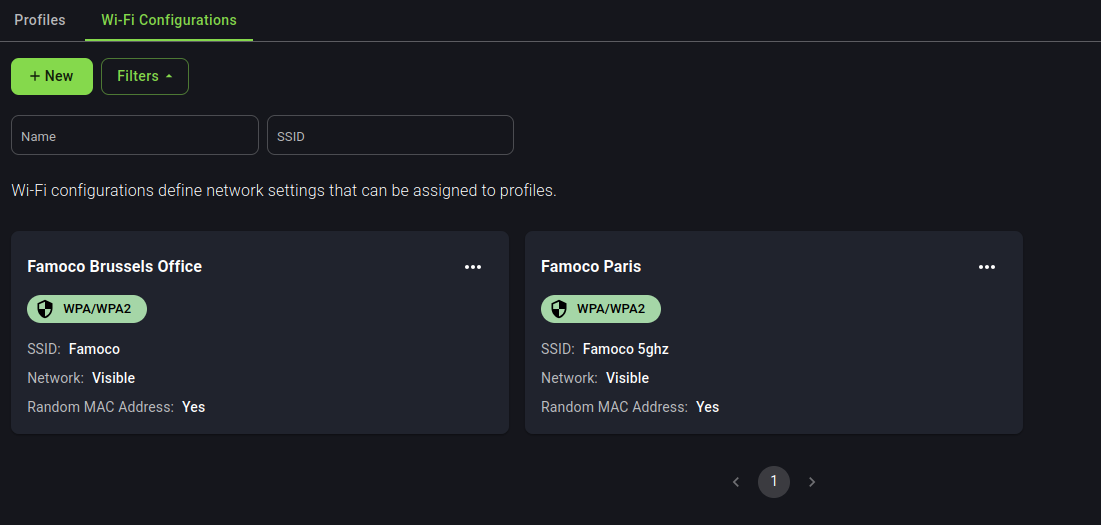
Upon entering the Wi-Fi Configurations menu, if you already have existing configurations, you will see them listed below. You may filter these configurations by their name or the Wi-Fi network name (SSID).
Pressing the icon allows you to edit or delete existing configurations.
Creating Wi-Fi Configurations
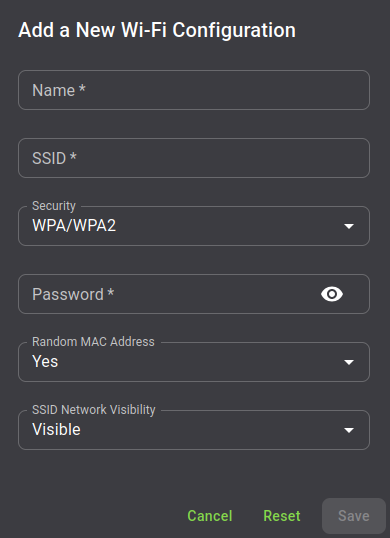
Upon pressing the "+New" button, you will be able to create a Wi-Fi configuration. Below is a screenshot of all the values you may configure.
Linking Wi-Fi Configurations to devices
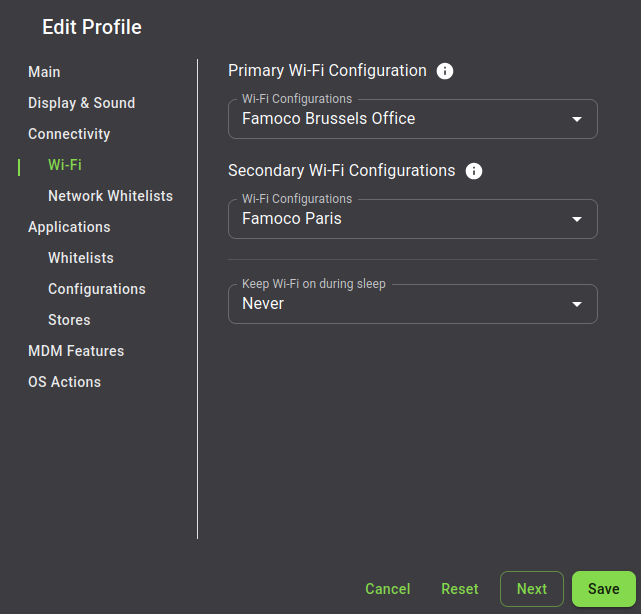
Once you have created your Wi-Fi Configurations, they need to be assigned to profiles in order to be sent to devices.
These configurations may be added in two ways:
- One Primary Wi-Fi Configuration
- One or more Secondary Wi-Fi Configurations
The impact of these settings will depend on the version of the Famoco Layer running on your device:
- If your device is running a Famoco Layer version below 3.27.0
Only the Primary configuration will be sent to the device, as the MDM and the Famoco Layer only used to handle one configuration at a time.
- If your device is running Famoco Layer version 3.27.0 or above
All configurations, both Primary and Secondary will be sent to the device.
Info
In case your device receives multiple configurations, the Primary one won't necessarily be the default one. This distinction exists only to handle previous versions of the Famoco Layer. The Famoco OS (and Android in general) will always select the most favorable connection.